

Set up Lens Simulator
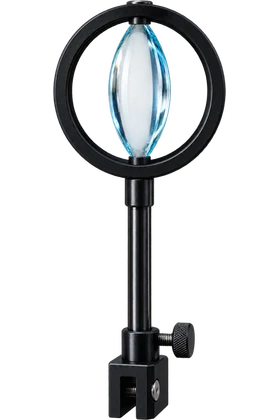
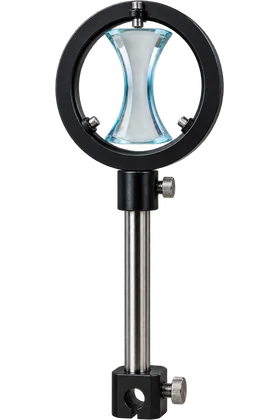
Choose convex or concave lens mode, then enter focal length, object distance, and object height.
- Start with a convex lens and an object beyond the focal length
- Switch to concave lens mode to see a virtual upright image
Pick a convex or concave lens, set focal length and object distance, and watch the ray diagram and image calculations update.
Read the guideStart Lens Simulator here: enter lens type, focal length, object distance, and object height to calculate image distance, magnification, image height, orientation, and real or virtual image type.
Choose a lens, move the object, and adjust focal length or height to update the ray diagram in real time.
Share the page, or copy a result link that restores this lens setup.
Ray diagram lab

Thin-lens equation
Signed focal length
15.0 cm
Image distance
26.3 cm
Magnification
-0.75
Image height
-3.0 cm
Conclusion
Move the object across the focal point or switch to a concave lens to compare real, virtual, upright, inverted, enlarged, and reduced images.
Lens Simulator uses the thin-lens equation with the common sign convention: converging lenses have positive focal length, diverging lenses have negative focal length, real images have positive image distance, and virtual images have negative image distance.
Lens Simulator connects lens type, focal length, object distance, object height, image distance, magnification, image size, and image orientation in one visual workflow.
Choose convex or concave lens mode, then change focal length, object distance, and object height while Lens Simulator redraws the principal rays.
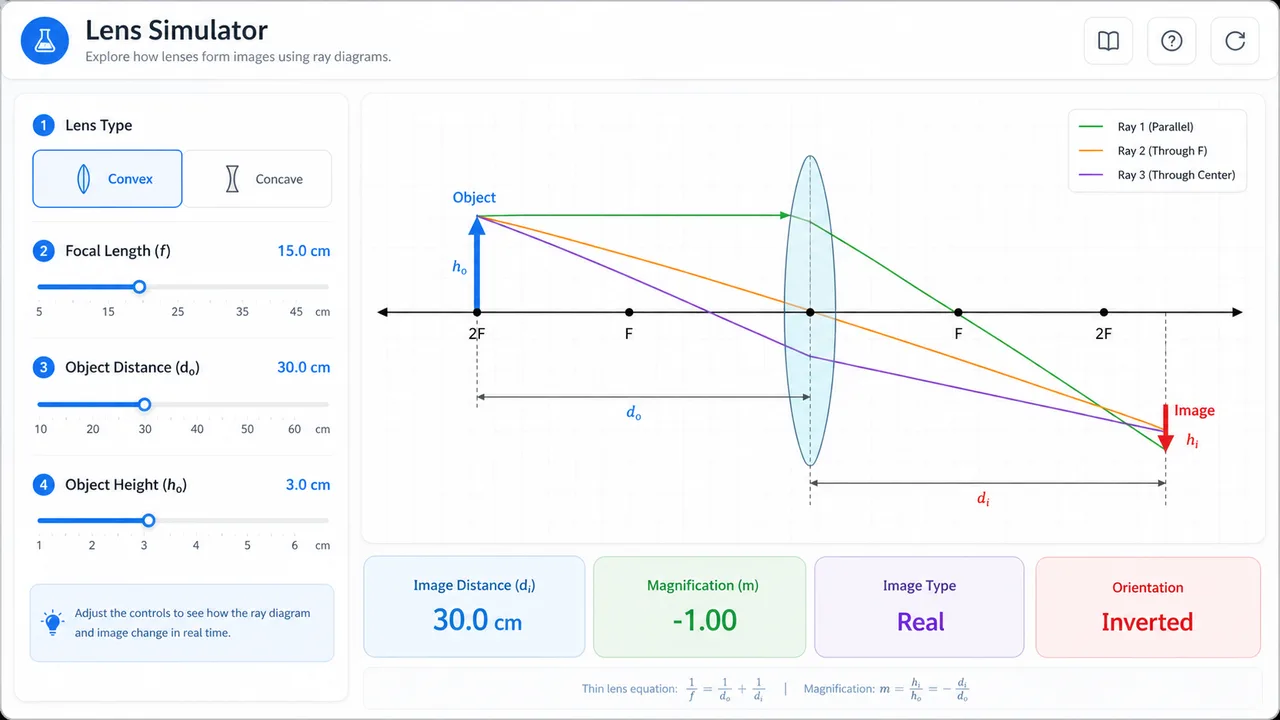
Move the object across the focal point in Lens Simulator to compare real and virtual images, upright and inverted images, and enlarged or reduced image size.
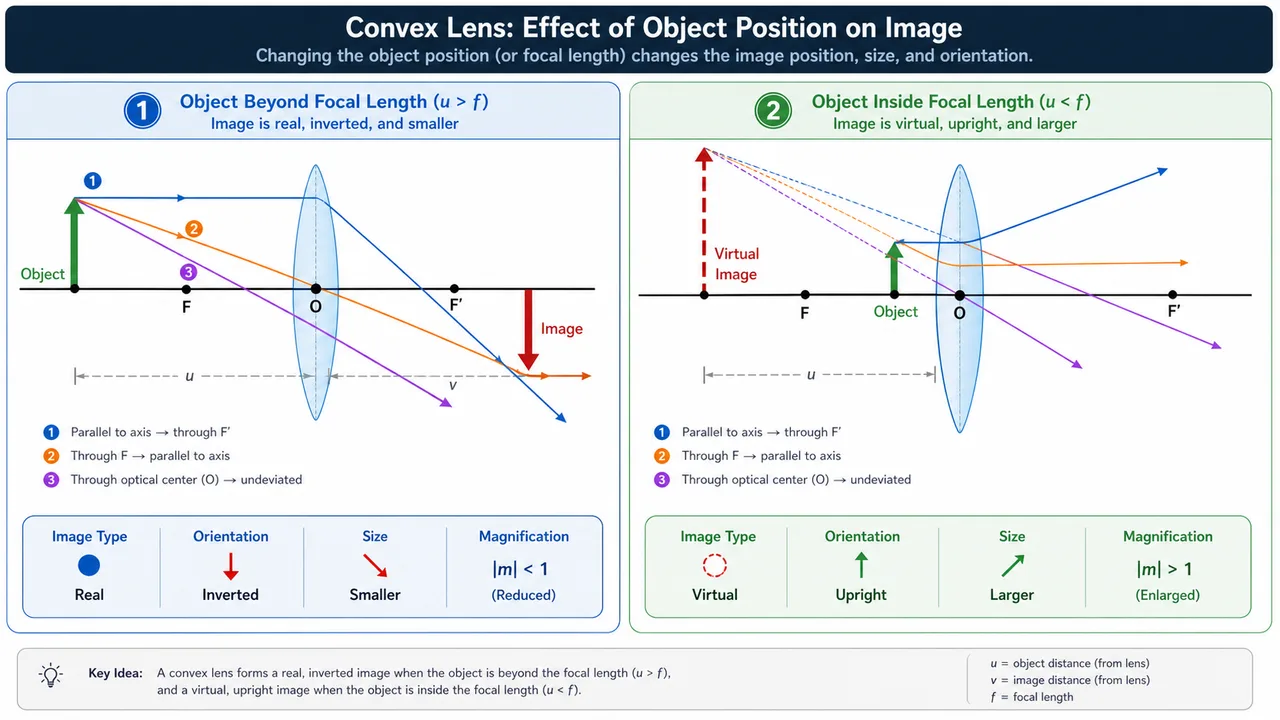
Use this Lens Simulator guide to turn the thin-lens equation and ray tracing rules into repeatable image-formation practice.
Choose convex or concave lens mode, then enter focal length, object distance, and object height.
Move the object or change focal length one step at a time. Lens Simulator updates the image distance, magnification, and ray diagram immediately.
Use the image distance sign, magnification sign, and image height to describe whether the image is real or virtual, upright or inverted, enlarged or reduced.
For homework, state the sign convention before interpreting the image type.